VNC remote desktop for Mac
Control your Mac from your iPhone or iPad
Senrigan is a VNC remote desktop client. Connect straight to macOS Screen Sharing, with no Senrigan account and no relay cloud in between.
App Store price is shown on the listing page. No ads.
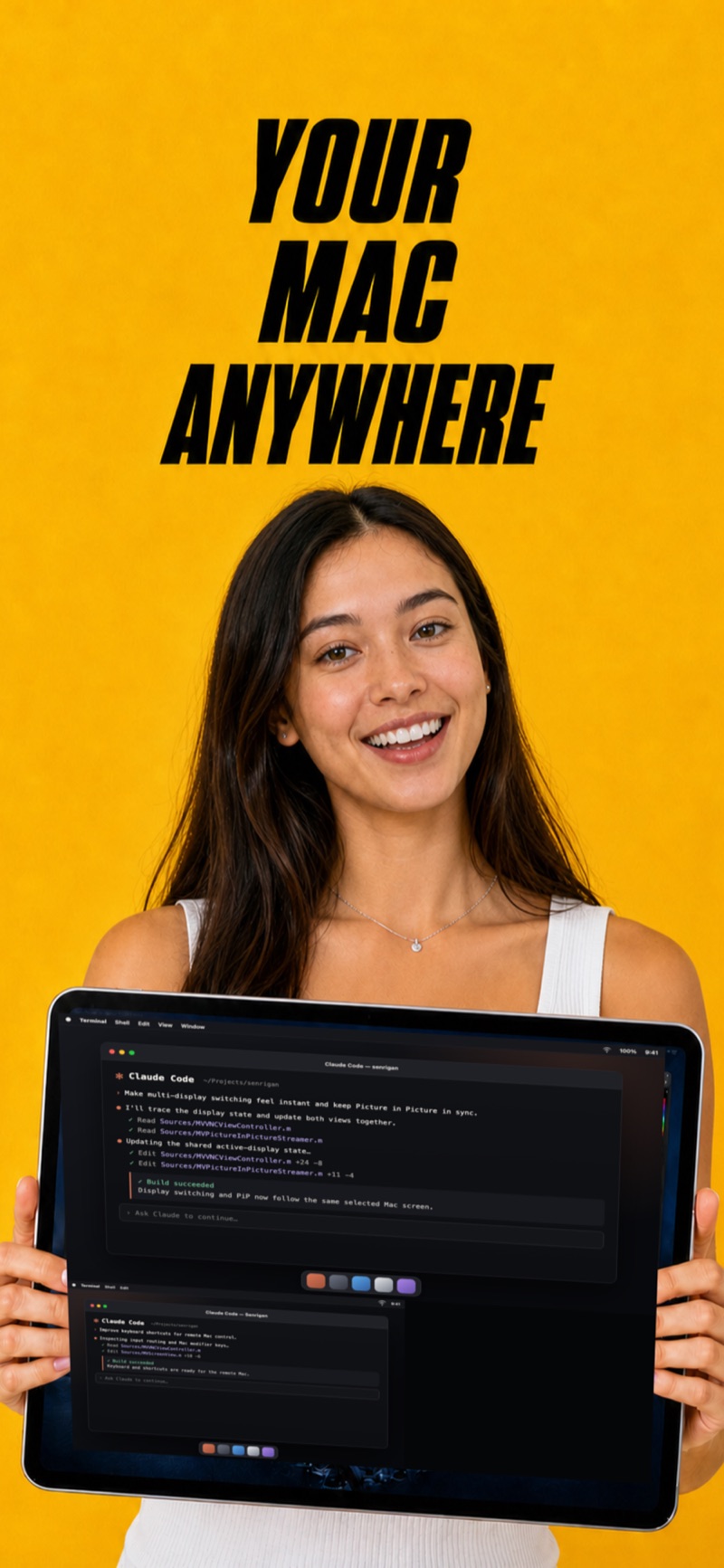
What you can do with Senrigan
Four things that make a phone or tablet usable as a Mac remote desktop.
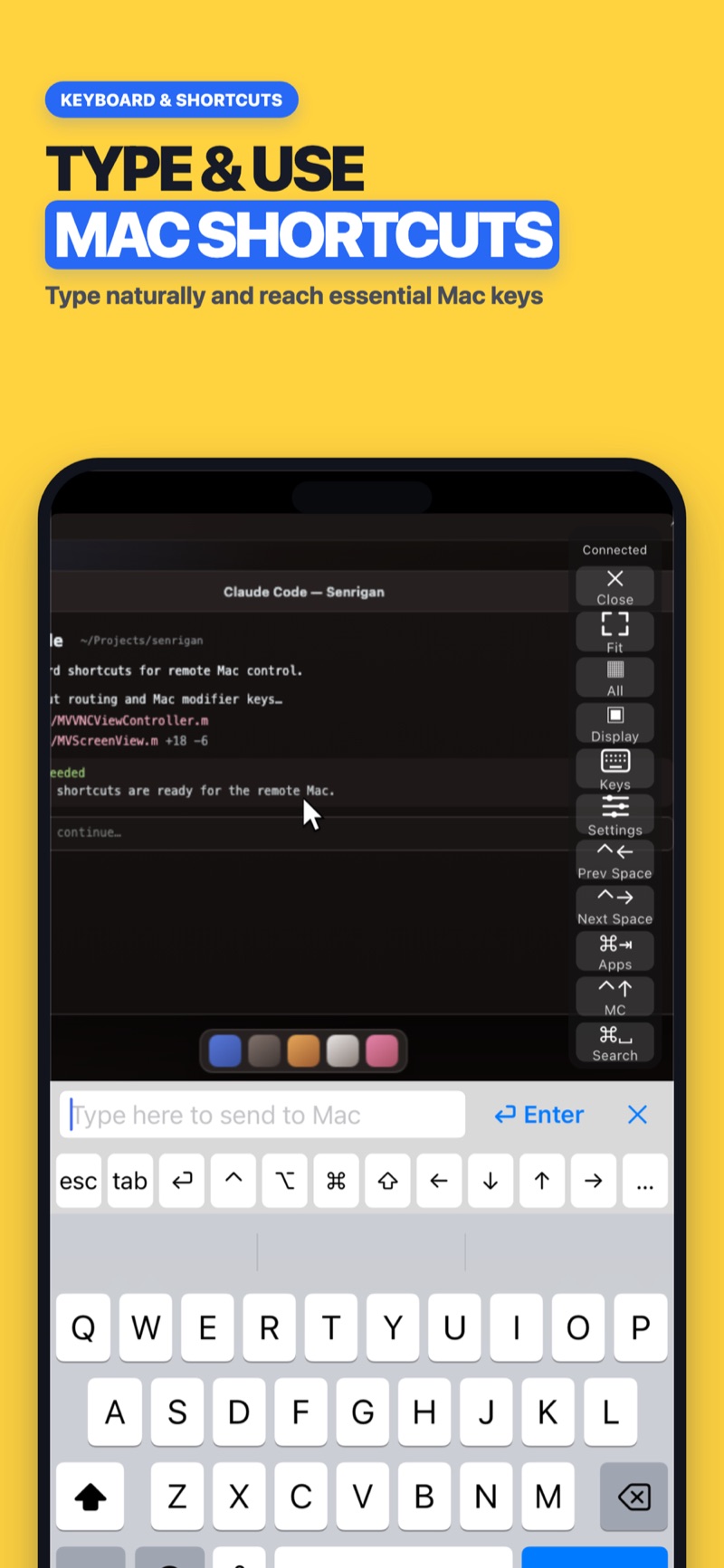
Type on your Mac, shortcuts included
Type into a text bar and send it to the Mac, or use the on-screen key row for esc, tab, the arrows and the Command, Option and Control keys. Shortcut buttons along the edge cover switching Spaces and apps, Mission Control and search. Japanese text input is supported: since version 1.0.6, letters, numbers and symbols arrive exactly as you typed them even when a Japanese input method is active on the Mac.
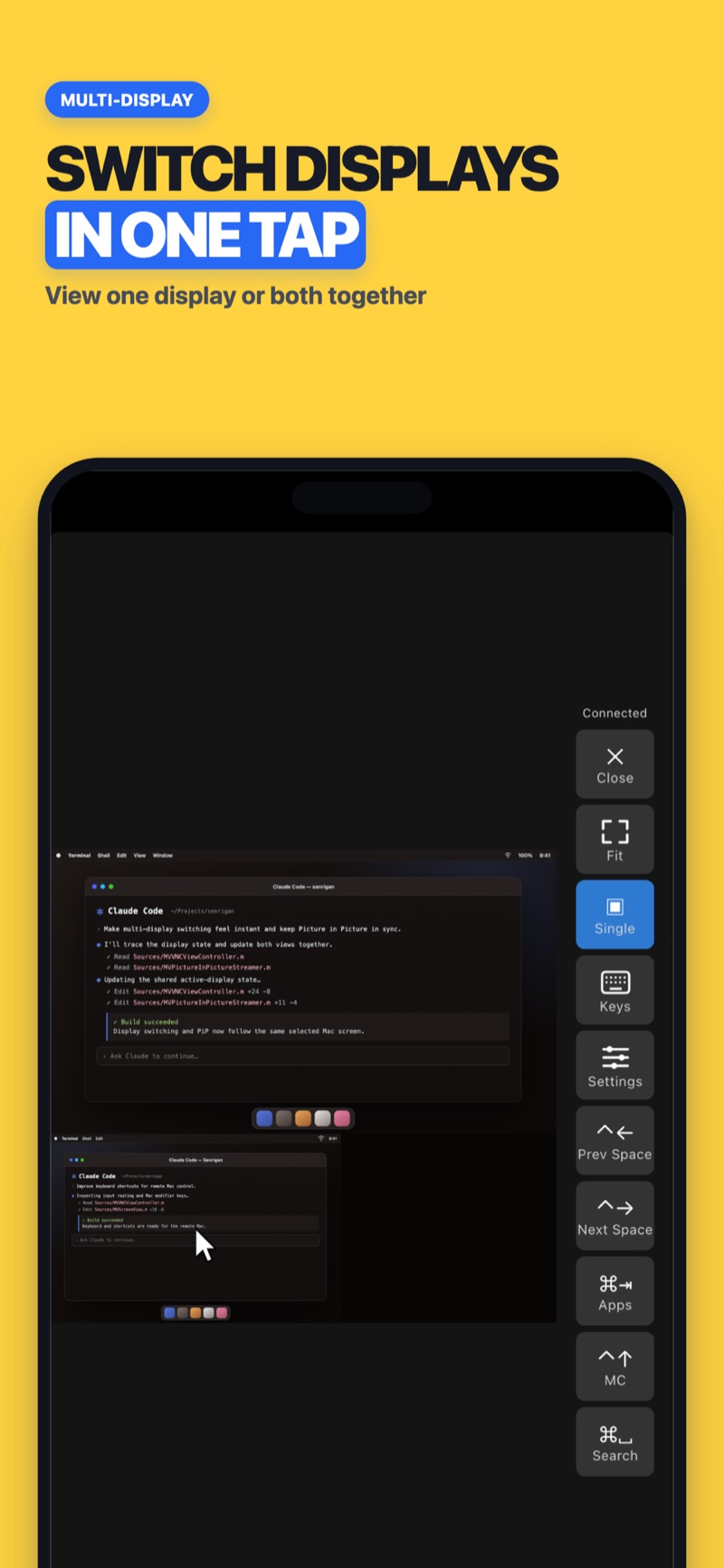
Switch displays in one tap
If your Mac has more than one display, view them all together or one at a time and switch from the on-screen toolbar.
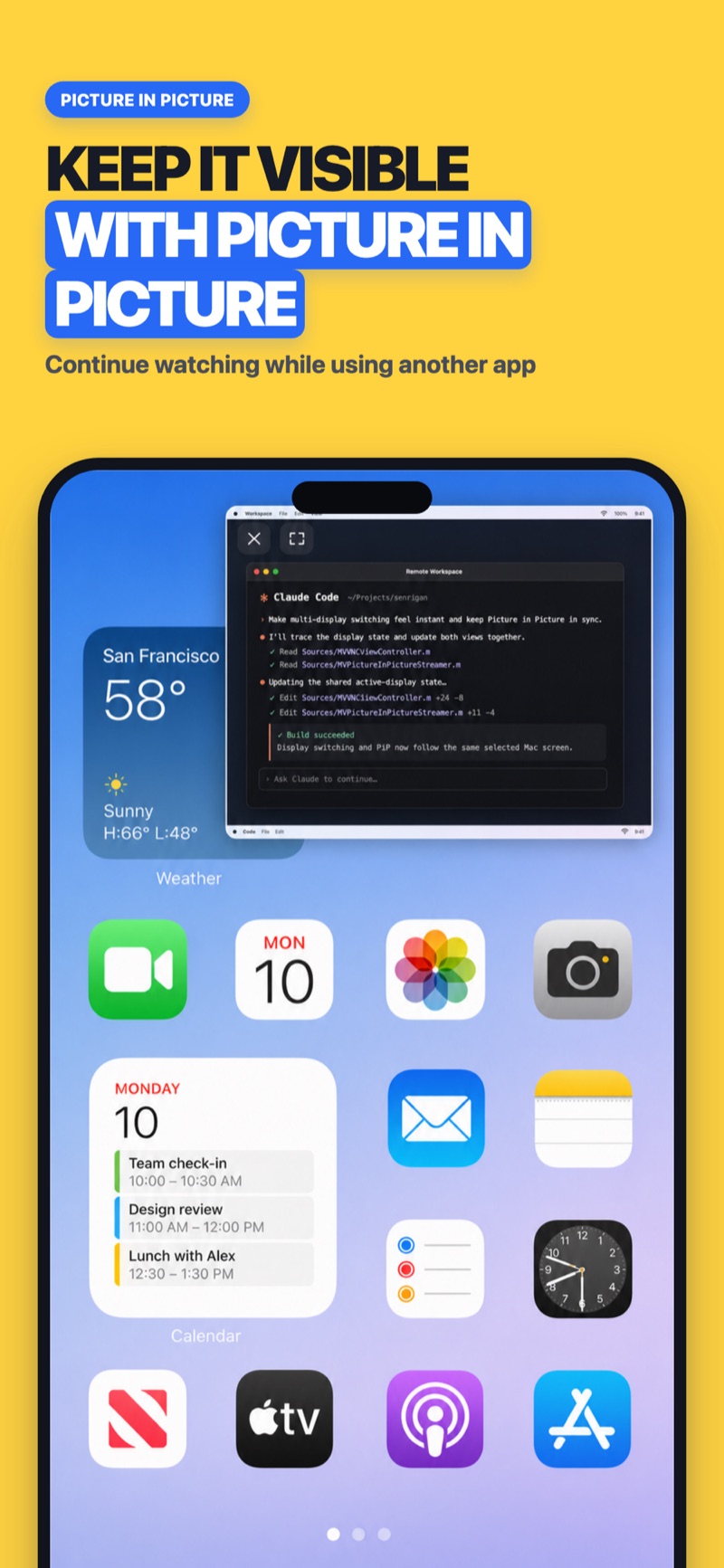
Keep the Mac screen visible with Picture in Picture
Turn on Picture in Picture in Common Settings and the Mac screen keeps playing in a small floating window while you use another app on your iPhone or iPad.
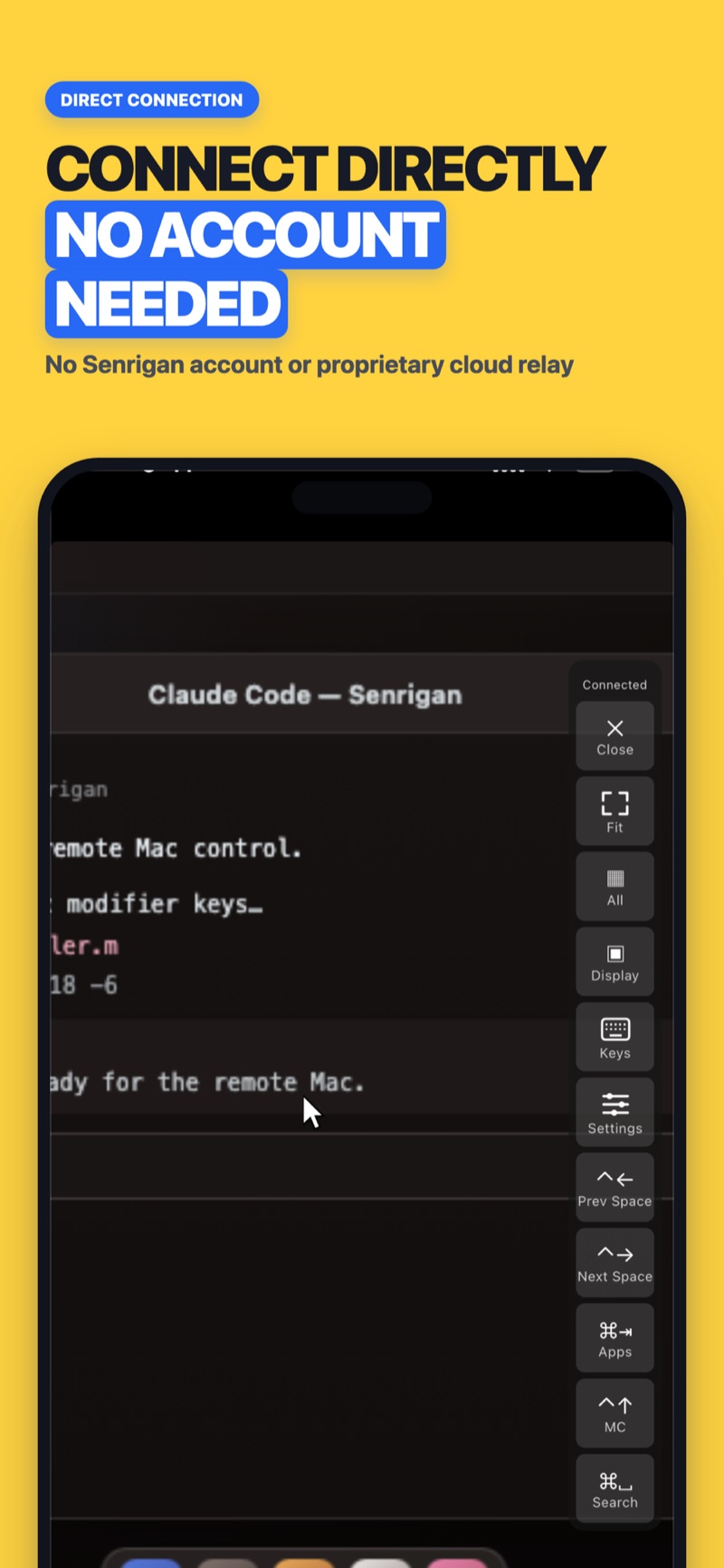
Connect directly, no account
Senrigan talks straight to macOS Screen Sharing or another VNC-compatible server that you manage. There is no Senrigan account and no proprietary cloud relay. Server names and settings stay on your device, and passwords are kept in the iOS Keychain.
Touch controls
- Trackpad-style cursor control
- Two-finger scrolling
- Pinch to zoom
- Saved connections on your device
Set up in three steps
Turn on Screen Sharing on the Mac
Open System Settings → General → Sharing and enable Screen Sharing. In its settings, allow “VNC viewers may control screen with password” and set a password. VNC reads up to 8 characters.
Add the Mac in Senrigan
Enter the Mac’s host name or IP address, port 5900 and the password you set.
Connect and control
Away from home, use a VPN that you manage, such as Tailscale, and connect through it. Never expose port 5900 to the internet.
Try it with your own Mac.
Frequently asked questions
Is Senrigan free?
As of October 2026 it is listed as free to download on the App Store, and the app shows no ads. The current price is always the one on the App Store page.
Do I need a Senrigan account or a cloud service?
No. Senrigan connects directly to the VNC server you choose, such as macOS Screen Sharing. There is no Senrigan account and no proprietary relay server.
How do I set up my Mac?
Open System Settings → General → Sharing, enable Screen Sharing, and allow VNC viewers to control the screen with a password. Then add the Mac’s host name or IP address, port 5900 and that password in Senrigan.
It says no supported authentication method is available. What should I do?
In macOS Screen Sharing settings, check “VNC viewers may control screen with password” and set a VNC password. Without it the Mac only offers Apple’s own login method, which Senrigan does not support.
Can I connect when I am away from home?
Yes, through a VPN that you manage. The app has a shortcut to Tailscale’s App Store page. Standard VNC traffic is not encrypted, so never expose TCP port 5900 directly to the internet.
Does it work on iPad and with Japanese input?
Yes to both. Senrigan runs on iPhone and iPad (iOS and iPadOS 15 or later) and supports Japanese text input.
What data does Senrigan collect?
No ads, no IDFA and no tracking. Optional anonymous Firebase Analytics and Crashlytics help improve usage and stability, and you can turn them off in Common Settings. Your connection destination, password, screen, input and clipboard are never sent to them. Details are in the Privacy Policy.
Reach your Mac from your iPhone or iPad
Direct VNC connection, Mac keys, multi-display and Picture in Picture.
Scan with your iPhone to open the App Store